Real Arm
First of all connect to the arm via the Ethernet port. For more information see Connect to a PC.
Now, follow the steps below:
- Check the Gripper Connection
Menu->Configuration->Robot->Product-> End Effector TypeNot Installed
- Move to the Home position
Menu->Operation->Actions, Move to Zero position
In Terminal run the following command to start the ROS driver:
$ roslaunch kortex_driver kortex_driver.launch
Rviz will open. Do steps 4 and 5 in the Rviz window.
4. In Rviz, click on Add -> MotionPlanning, a model of the arm with the current position will appear with the MoveIt
interface on the left side.
5. Under option in the Motion planning, Planning tab, reduce the Velocity and Acceleration scales. See the image
Motion Planning Settings for more details.
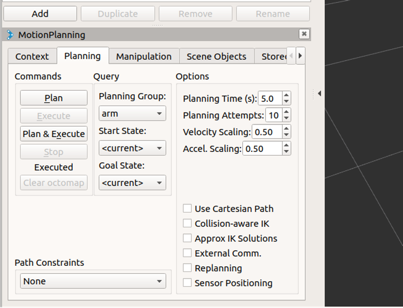
Fig. 8 Motion Planning Settings
Now you can move the Rviz model.
Use
Plan/Plan&Executefeature to move the arm.In the second terminal run the following command to run the vision node:
$ roslaunch kinova_vision kinova_vision.launch
Now you can use RGBD data, and a 3D point cloud from the camera.
[Optional] Access to aligned coloured point cloud data:
$ roslaunch kinova_vision kinova_vision_rgbd.launch
- In Rviz:
Add->By topic->/depth_registered->/points->PointCloud2