Starting Up
The goal of this document is to provide a step-by-step guide to starting up the Qualisys Air system and recognize a Rigid Body, and stream the data into ROS.
To start up the Qualisys system, follow these steps:
Turn on the Qualisys computer.
Open the Qualisys Track Manager software. See the Fig. 124.
Fig. 124 Qualisys Logo
Click on
New projectbutton shows in the Fig. 125.
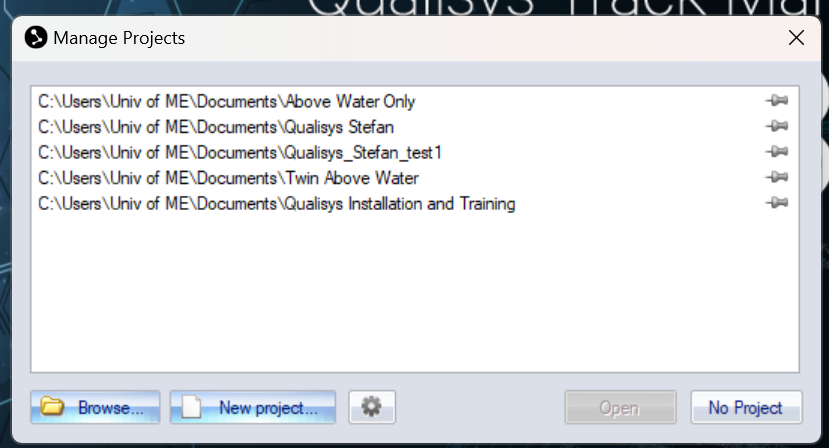
Fig. 125 New Project
Give the project a name, e.g. Qualisys_Stefan_test1, then select Settings imported from another project, click
OK. See the Fig. 126.
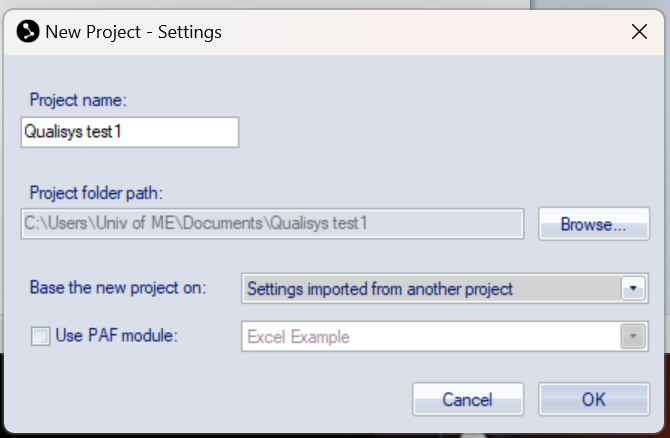
Fig. 126 New Project
Select
Settingsfile at the location indicated below (i.e. Documents -> Above Water Only) and hitOK. See the Fig. 127.
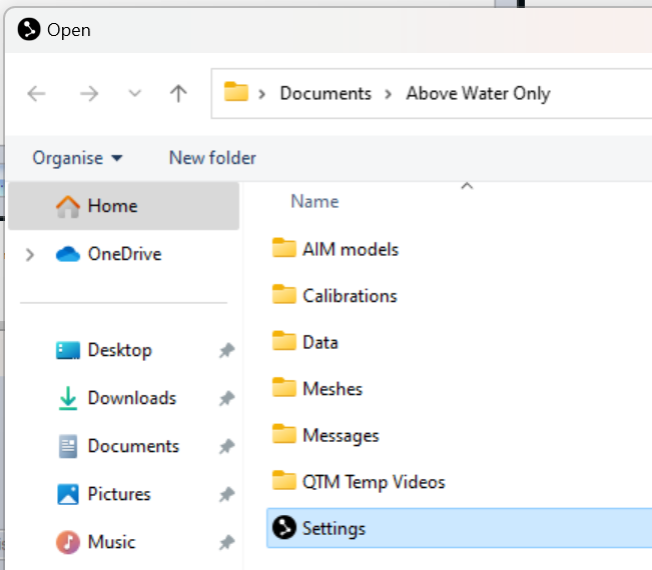
Fig. 127 Setting
Click on the
Newicon to start the system. See the Fig. 128. Make sure all 8 tracker cameras + 1 video camera are operational. See the Fig. 129.
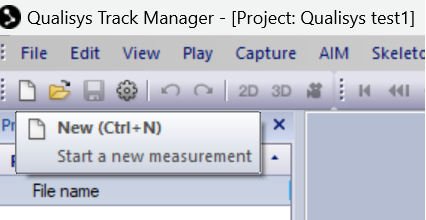
Fig. 128 New
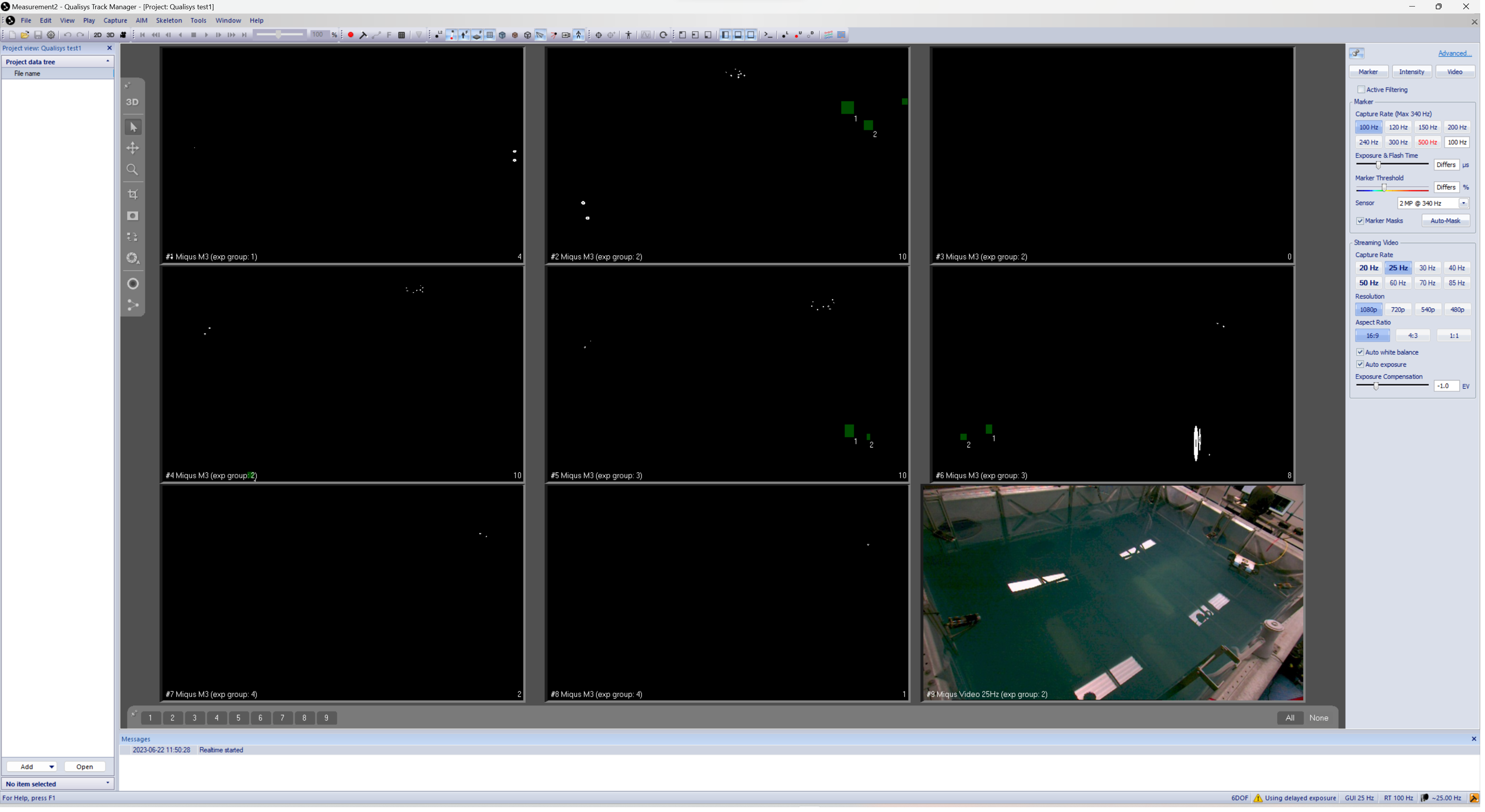
Fig. 129 Operation
Troubleshooting
If the Qualisys system is not working properly or cameras do not show up, follow these steps:
Try turning off the power to all cameras (there is just one large power adapter poering them all), then wait for a couple of seconds, and then turn back on;
Check the networking settings. Right-click on the Qualisys DHCP Server icon -> Configuration wizard. See the Fig. 130. The IP for the
Ethernet portshould be192.168.0.2, and for theCameras portthe IP should be192.168.254.1. In case that is not the case and you need to change/amend them, 1st select the port then click Next and follow the instructions.
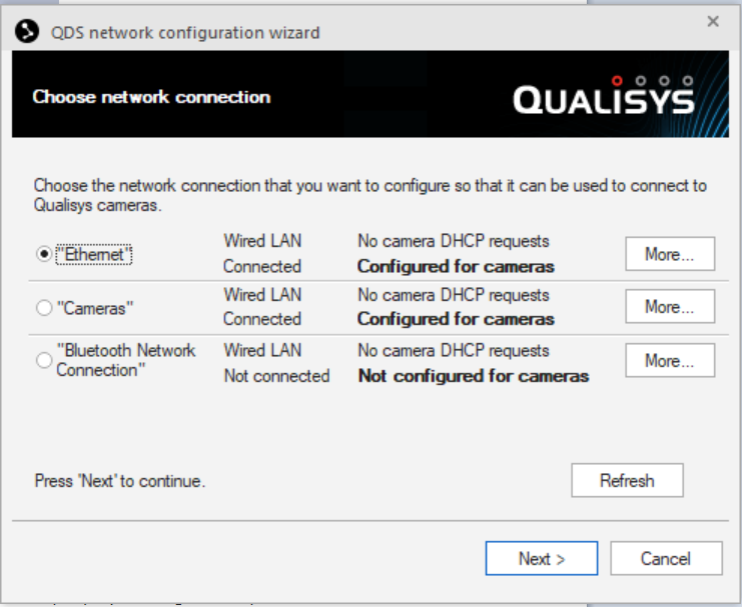
Fig. 130 DHCP
Note
The other Qualisys computer, namely Qualisys UW, has its Ethernet port IP set to 192.168.0.1 so a different IP was selected for Qualisys Air computer.
Check the wiring is done according to diagram shown in the Fig. 131.
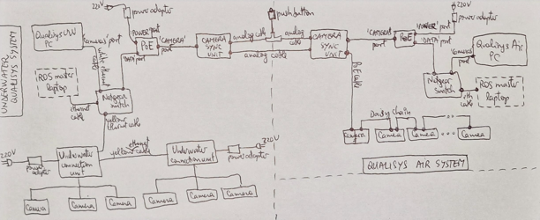
Fig. 131 Wiring Diagram