Ros Interface
This section goal is to connect a laptop running linux (Ubuntu 20.04 tested) with ROS on it to receive Qualisys
data in real-time. The laptop is configured as a ROS master.
Warning
Don’t change IPs on Qualisys PC Air in an attempt to match the networking requirements of your robot.
Instead, change the robot’s IPs to match what is already set up on Qualisys PC Air.
Your ROS node needs to be on the same network with the cameras (IP class 192.168.254.x/24).
Note
You can check the IP information by right-click on the icon Windows Taskbar -> Qualisys DHCP Server -> right click, then select Configuration wizard -> click the button More, adjacent to Cameras.
ROS Interface Setup
First, Launch Qualisys PC Air -> QTM -> New, and provided that all camera information loads successfully, and a rigid body was defined.
Then QTM automatically streams data on the IP 192.168.254.1 on the cameras network, to any listener.
So, any ROS node can pick up those messages. See Fig. 163.
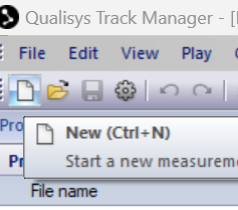
Fig. 163 Qualisys New Icon
The rigid body is now correctly identified by Qualisys Air system, and data is being streamed on the Cameras port. If not see the Define global coordinate system section.
Connect the laptop to the cameras’ network with plugin an Ethernet cable into the Netgear switch. See Fig. 164.
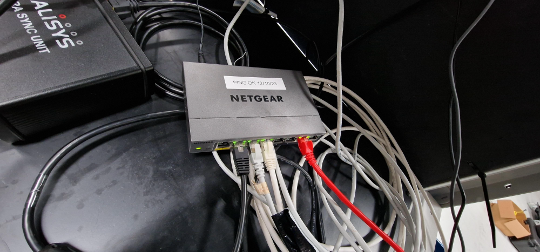
Fig. 164 Qualisys Ethernet
Now, in the laptop, first, set up the network IP 192.168.254.183. Also, create a new ROS workspace. In the new terminal:
$ cd ~/qualisys_ws/src
$ git clone https://github.com/KTH-SML/motion_capture_system
$ cd ~/qualisys_ws
$ catkin_make
Now, edit the .bashrc file to include the following lines:
$ gedit ~/.bashrc
$ source ~/qualisys_ws/devel/setup.bash
$ export ROS_MASTER_URI=http://192.168.254.183 :11311
$ export ROS_IP=192.168.254.183
Now, close all terminals, then open a new terminal and run the following commands:
$ rospack profile
$ roslaunch mocap_qualisys qualisys.launch server_address:=192.168.254.1
The Figure Fig. 165 below shows the ROS node started successfully.
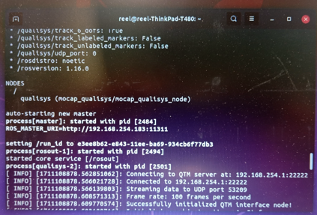
Fig. 165 ROS Interface
Check all topics. You should be able to see the object in by typing
$ rostopic list
Check data is coming through. For example, for a rigid body called Mallard_pattern1 do this:
$ rostopic echo /qualisys/Mallard_pattern1/pose
See Fig. 166 below.
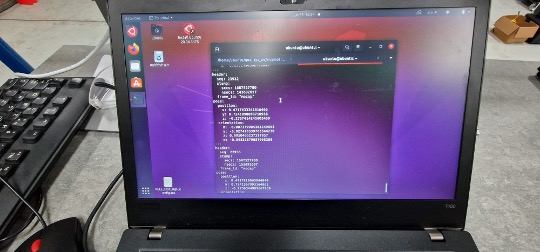
Fig. 166 ROS Topic
Troubleshooting ROS
To do a quick check, do the following steps:
The error below appears where there is no direct connection between the ROS node and the Qualisys server. See Fig. 167.
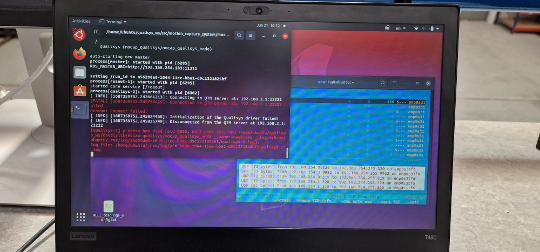
Fig. 167 ROS Error
Try pinging the server in terminal
$ ping 92.168.254.1
If not successful check the cables, and whether the network switch is operational or not. You could also check packets being transmitted and received by the laptop, e.g. using code below in terminal
$ iptraf-
Also, make sure no typos are present in the command, e.g. sever_address instead of server_address.
Note
If the rigid body name contains spaces, e.g. rigid body1, roslaunch will fail.