Manual Control
There are two ways to control the Unitree Go2 robot manually:
App Control
Remote Control
App Control
Note
There are different features available in the app control, which are not available in the remote control.
Note
Visit the Go2 App Control Demos to know more about the app control features.
To control the Unitree Go2 robot with the app, first of all you ned to turn the robot and app on. To bind the app with robot read the Go2 App section.
App Control Demos
Warning
Before controlling the robot with the app, watch the tutorial videos in the app and also Go2 App Control Demos.
Video below shows the posture and movement of the robot controlled by the app.
To know more about the app control demos, please visit the Go2 App Control Demos.
Remote Control
To control the Unitree Go2 robot with remote control, first of all you ned to turn the robot and remote control on. To know how to turn the robot and remote control on, please refer to the Go2 Start Up section.
Video below shows how to connect the remote control to the robot.
Remote Control Parts
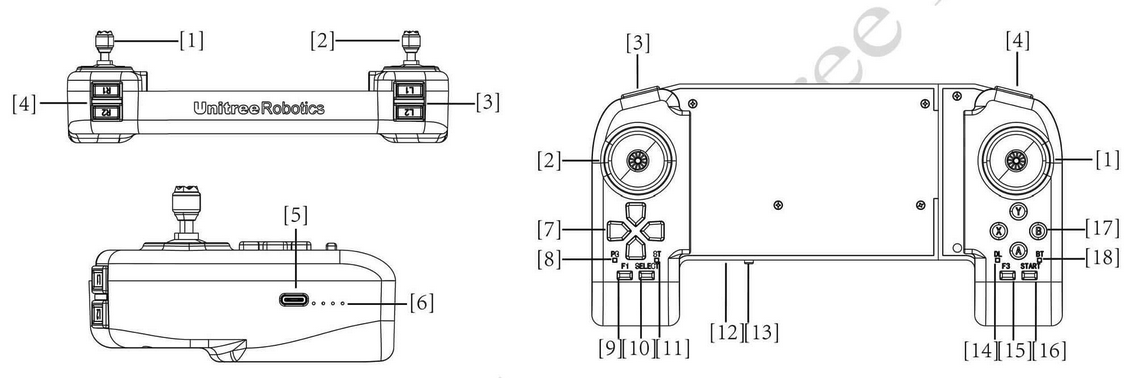
Fig. 95 Go2 Remote Control
Fig. 95 shows the parts of the remote control. The parts names as follows:
Right Rocker
Left Rocker
Key L1/L2
Key R1/R2
Type C Charging Interface
Data transmission Signal Light
Left Key
Power Connect Indicator
F1 Left Rocker Calibration Key
SELECT Key
Charging Status Indicator
Power Indicator Light
Power Button
Data Transmission Indicator Light
F3 Right Rocker Calibration Key
START Key
Right Key
Bluetooth Signal Indicator Light
Remote Control Commands
Button |
Effect |
|
Left Rocker |
Push Forward/Backward |
Move back and forth |
Push Left/Right |
Sideways Movement |
|
Right Rocker |
Push Forward/Backward |
Head Up or Down |
Push Left/Right |
Left or Right Turn |
|
Switch Mode |
||
START |
Get Unlocked |
|
Walking Mode |
||
Keep Walking Mode (Double Click) |
||
SELECT |
Make a Pose |
|
L2 (Long Press) + A (Click) |
Locking Posture 1:Lock the joints when standing |
|
Locking Posture 2:Press again to go prone |
||
L2 (Long Press) + B (Click) |
Damping Mode (soft emergency stop) |
|
L2 (Long Press) + START (Click) |
Running Mode |
|
L2 (Long Press) + START (double Click) |
Keeping Running Mode |
|
Right (Long Press) + START (Click) |
Stairs Climbing Mode1: Upstairs Forward / Downstairs Backwards |
|
Left (Long Press) + START (Click) |
Stairs Climbing Mode 2: Upstairs Downstairs Forward |
|
L1 (Long Press) + SELECT (Click) |
Endurance Mode |
|
Customised Movements |
||
L2 (Long Press) + X (Click) |
Back to Stand Up after falling down |
|
R2 (Long Press) + A (Click) |
Stretch |
|
R2 (Long Press) + B (Click) |
Shake hands |
|
R2 (Long Press) + Y (Click) |
Cheer |
|
R1 (Long Press) + X (Click) |
Punch |
|
R1 (Long Press) + A (Click) |
Jump Forward |
|
R1 (Long Press) + B (Click) |
Sit Down |
|
L1 (Long Press) + A (Click) |
Dance 1 |
|
L1 (Long Press) + B (Click) |
Dance 2 |
|
Function |
||
X (Click) |
Avoidance on (Default) |
|
Y (Long Press for 3 second) |
Avoidance off |
|
L2 (Click) + SELECT (Click) |
Searching Switch - Default off |
|
Arrow keys left and right |
Light switch - default green |
|
Parameters Settings |
||
L1 + Arrow keys Up/Down |
Adjust leg lift height |
|
Arrow keys Up/Down |
Adjust body height |
|
Note
- The
Athletic Modecan be run only viaGo2 App. The athletic actions are: Moon Walk.
Side Step.
Cross Step.
Parallel Leg Running.
Note
To have more information about the remote control, please read the documentation of the robot in Go2 App.